Installation
Install from Atlassian Marketplace
- Go to the Atlassian Marketplace and search for CodeContext for Jira
- Click Get it now
- Select your Jira Cloud site
- Click Install
The app will be available in your Jira instance within a few minutes.
Verify Installation
After installation, you should see:
- A CodeContext panel on issue create/edit screens
- A CodeContext section in your Jira project settings (under Apps)
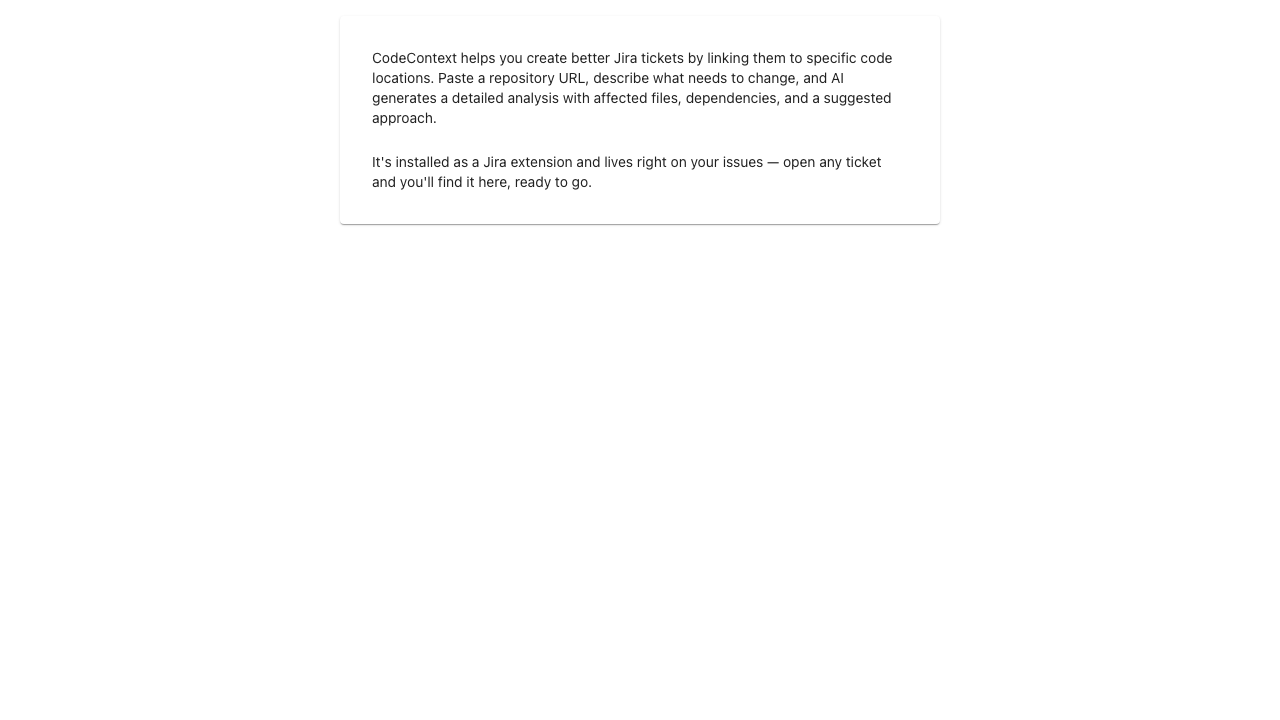
The administrator who installed the app will see a get started screen:
Permissions
CodeContext requires the following permissions:
| Permission | Purpose |
|---|---|
| Read issues | Display code context on existing tickets |
| Write issues | Update ticket descriptions with AI-generated content |
| Project admin | Configure repository connections per project |
Next Steps
Once installed, connect a repository to start linking code to your tickets.